

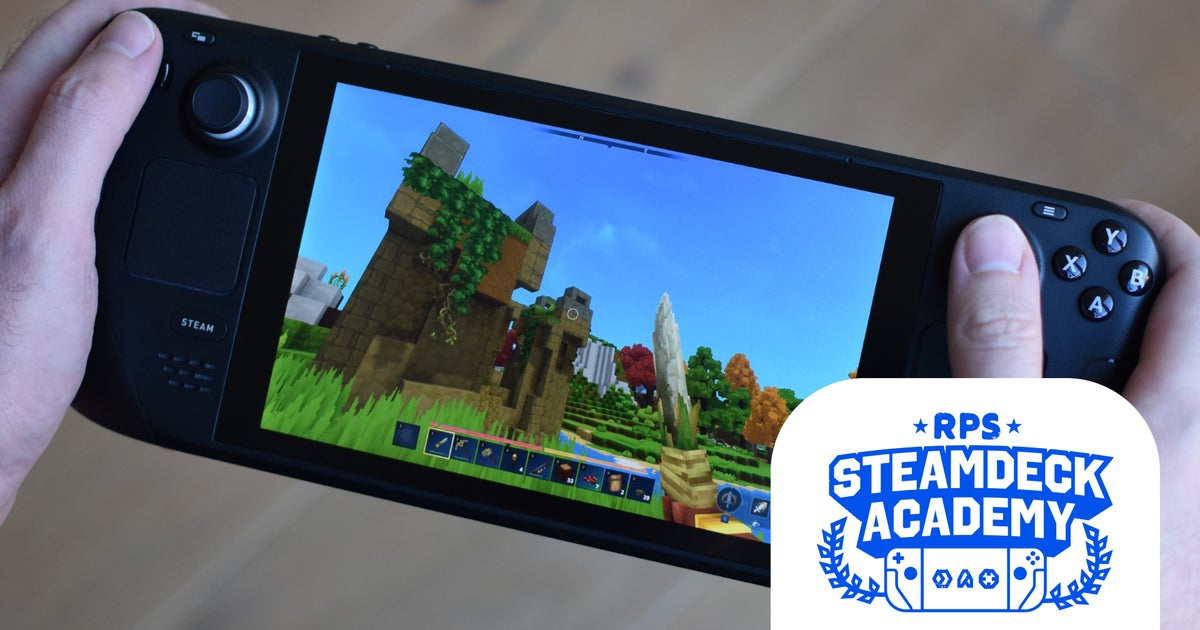
Right up until its early access release, Hytale’s chances of Steam Deck-enabled portability were anyone’s guess. Even the blocky sandbox’s developers Hypixel seemed unsure, announcing a SteamOS-friendly native Linux version (good!) but forgoing an actual Steam release (less good!) and warning Deck owners of Hytale’s absent controller support (definitely not good!).
However, as fellow cube enthusiast Minecraft would know, the Steam Deck doesn’t always let something like an apparent lack of basic functionality keep it down. The device itself provides all the tools you need to get Hytale up, running, and playable, and while the process is hardly a one-click install, the fruit of your toils is a game that Valve’s handheld PC can happily keep going for hours.
Optimised settings are down below, but first, let’s run through the setup process (guide-ified in more detail here). After descending into the Steam Deck’s Desktop Mode, site of many an installation bodge job, you’ll need to grab the Linux Flatpak from Hytale’s website and unwrap it here. After adding the Hytale Launcher to Steam as a non-Steam game and signing in (do this from Desktop Mode, it doesn’t work in Gaming Mode), you should be able get it running – before immediately hitting the wall of omitted controller support.
Luckily, Steam users do what Hypixel don’t. Hit the Steam button, head into Controller settings, and swap the default button layout for cshjp’s Hytale configuration in the Community layouts section. This remaps the Deck’s inputs to better replicate the keyboard and mouse controls that Hytale does recognise, and although you’ll still see keybind prompts on in-game actions, it doesn’t take long to mentally translate F key glyphs into X button presses.

This config also lets you navigate menus and the inventory screen with a mousey cursor by thumbing the right trackpad, while the R2 and L2 triggers serve as left-click and right-click respectively. Perfect for heading into the Video settings menu and making some tweaks, most urgently to enable Fullscreen mode so Hytale can fully fill out the Steam Deck’s 1280×800 display.
That’s a lot of preamble, to be sure, though it’s preferable to Hytale not working on the Steam Deck at all – and is nowhere near the level of faff that Minecraft needs to reach the same point. Besides, once the tinkering is complete, there are no more nasty surprises waiting in ambush. Multiplayer, for example, works fine, Hytale’s manual server-joining system evidently having no anti-cheat issues with SteamOS. It’s also relatively easy on battery life, draining my original LCD model from full to empty in 2h 47m. It could probably do longer, too, if you’re really judicious about your power settings; I left everything on default except for keeping screen brightness and speaker volume at 50%.
Hytale also runs well enough on the Steam Deck’s tiny, increasingly aged APU. On the automatically selected Medium quality preset, 60fps was the norm, though there were quite harsh dips when loading into a world or venturing deeper into its square-built wilds. I suspect it’s not great at handling the loading process for new terrain chunks. These drops can be smoothed out, though, by lowering the view distance (more on this below).

There are two drawbacks of a more serious kind, the most common downer being the utterly miniscule text size for item descriptions and tooltips. Not the worst thing on a deskop monitor, but on a 7-inch handheld, better ready the Steam + L1 buttons for the magnifying tool. Know also that at least on this standalone launcher – the eventual Steam version may be different – there are no cloud or account-linked saves, so if you intend to play Hytale on both a Steam Deck and your main desktop, your singleplayer worlds will be distinct to each.
That’s unfortunate, and does contribute to a feeling that Hytale’s Steam Deck viability is owed to the flexibility of the system, as opposed to Hytale itself. It’s a good advert, in particular, for SteamOS’ built-in sharing of custom controller schemes. Still, the lack of cloud saves isn’t something that’s broken or a bug – they simply weren’t implemented, regardless of the hardware. Everything here that should work, can work, provided some elbow grease is put into setting everything up.
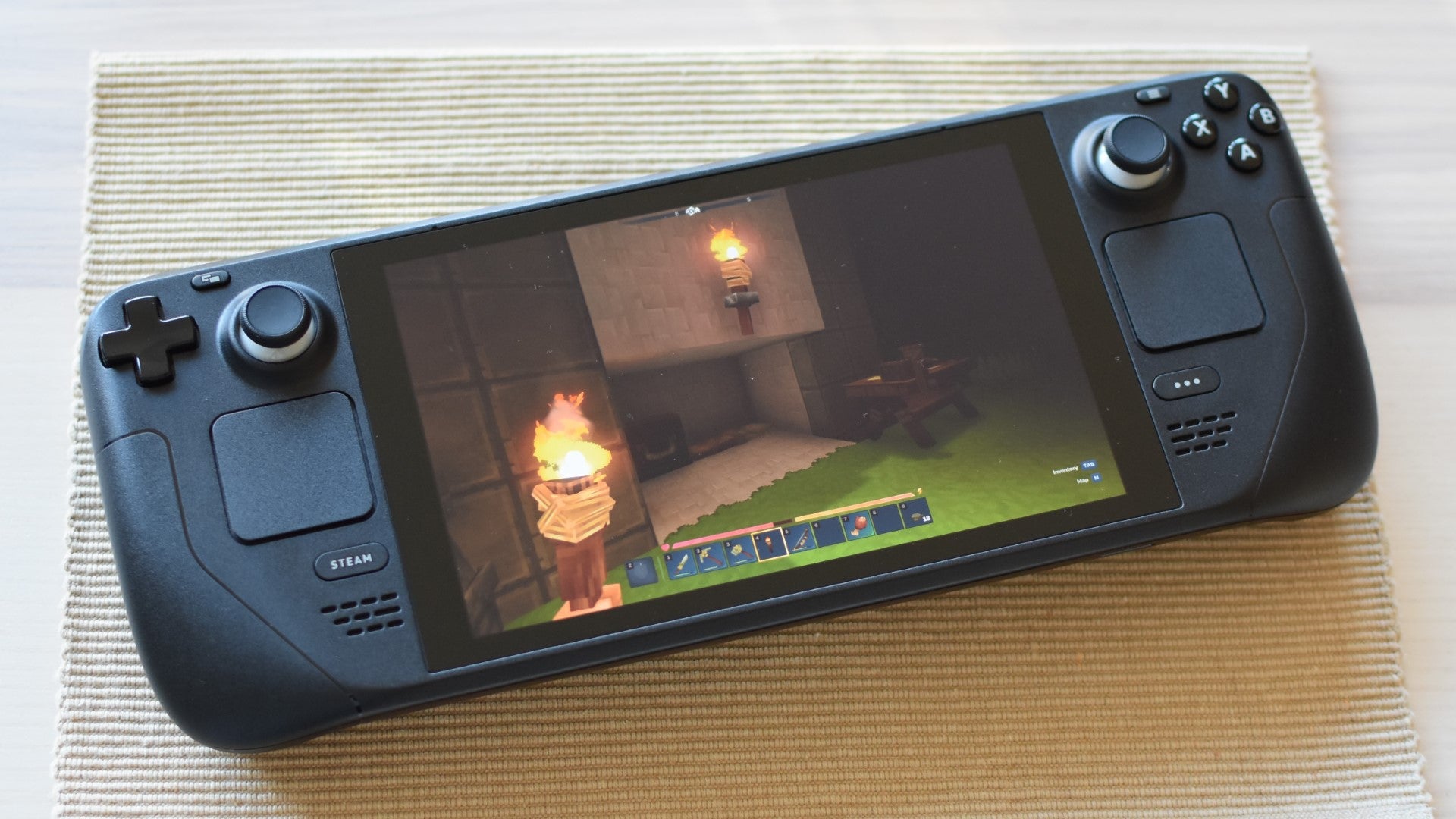
Hytale: Steam Deck settings guide
Hytale’s only performance blemishes worth addressing are those occasional FPS troughs when navigating into freshly-loaded map chunks. My testing thus far suggests that entirely eliminating these isn’t really possible, and more zealous attempts at doing so can result in Hytale looking unnecessarily ugly or blurry.
These recommended settings therefore lean towards the higher end of the quality spectrum, with the exception of view distance, which was easily the most effective at reducing both the severity and regularity of framerate dips. I ended up setting it to 288 blocks: higher than the Low preset, lower than Medium, but maintaining much of Low’s speed advantage as well as landing closer to Medium on visual quality.
In short, try these:
- Fullscreen: On
- Graphics preset: Custom
- View distance: 288
- Render scale: 100
- World details: High
- Anti-aliasing: Low (FXAA)
- Shadow quality: High
- Particle quality: High
- Shading quality: High
- Bloom: High
- Sun shafts: On
- Foliage fading: On
- Depth buffer precision: On
On my LCD Deck, which is effectively capped at showing 60fps due to its 60Hz screen, I still got that maximum framerate most of the time with these settings; thanks to the view distance reduction, they run a little more smoothly than the Medium preset does as-is, even with most of the other individual settings bumped up to High. On a Steam Deck OLED, with its quicker 90Hz display, I also saw framerates typically between 80-90fps. Behold, the power of being just slightly shortsighted.
I imagine I’ll need to return to Hytale testing in the future, potentially as it gains stability improvements throughout its early access development, or it gains a proper Steam version. Ideally, both. For now, though, the Steam Deck is more of a viable destination for the early access build than you might think – even if you need to drag it there yourself.
Hardware,Steam Deck Academy,Single Player,Multiplayer Competitive,First person,Action Adventure,RPG,PC,Riot Games,Indie,Hytale,Third person,Steam Deck#Playing #Hytale #Steam #Deck #takes #classic #spannering #effort #rewarded1768412422
